->RFDDKEY USER MANUAL<-
->RFDDKEYCOMBO USER MANUAL<-
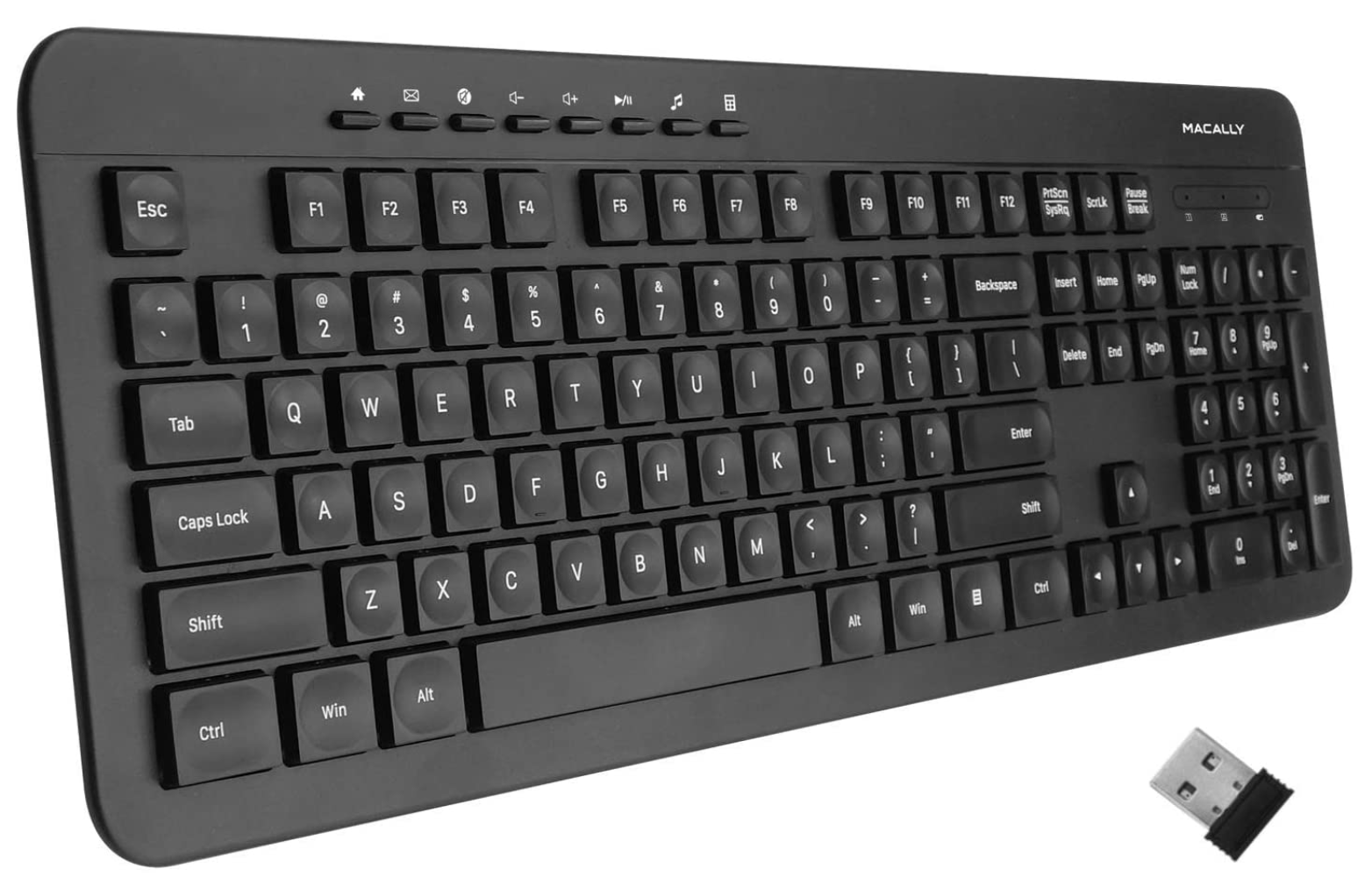
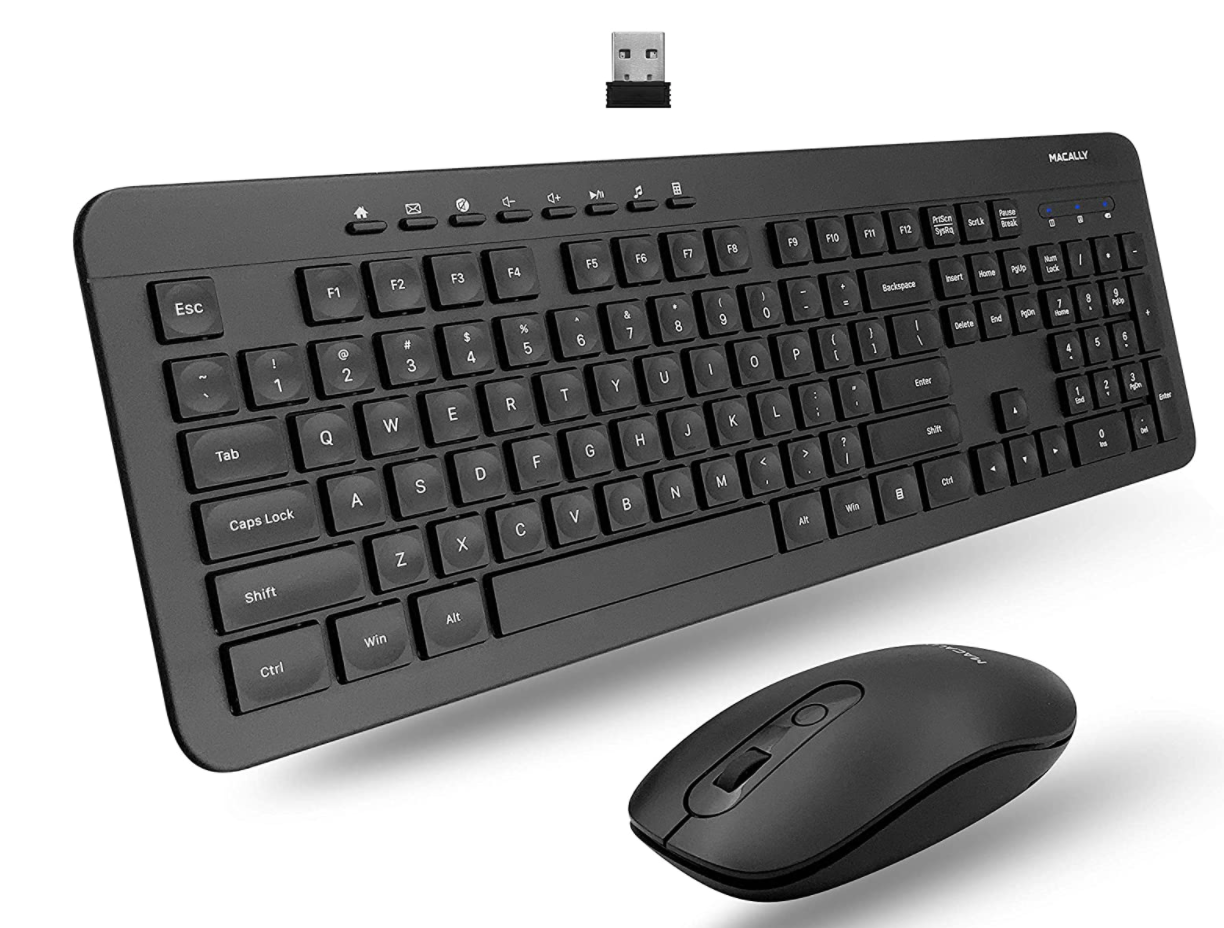
Q: Is this a Bluetooth Keyboard?
A: No, this series runs on radio frequency (RF). This keyboard (or bundle) will not function without the receiver/dongle.
Q: What does a dongle look like?
A: Here is the picture of the dongle:

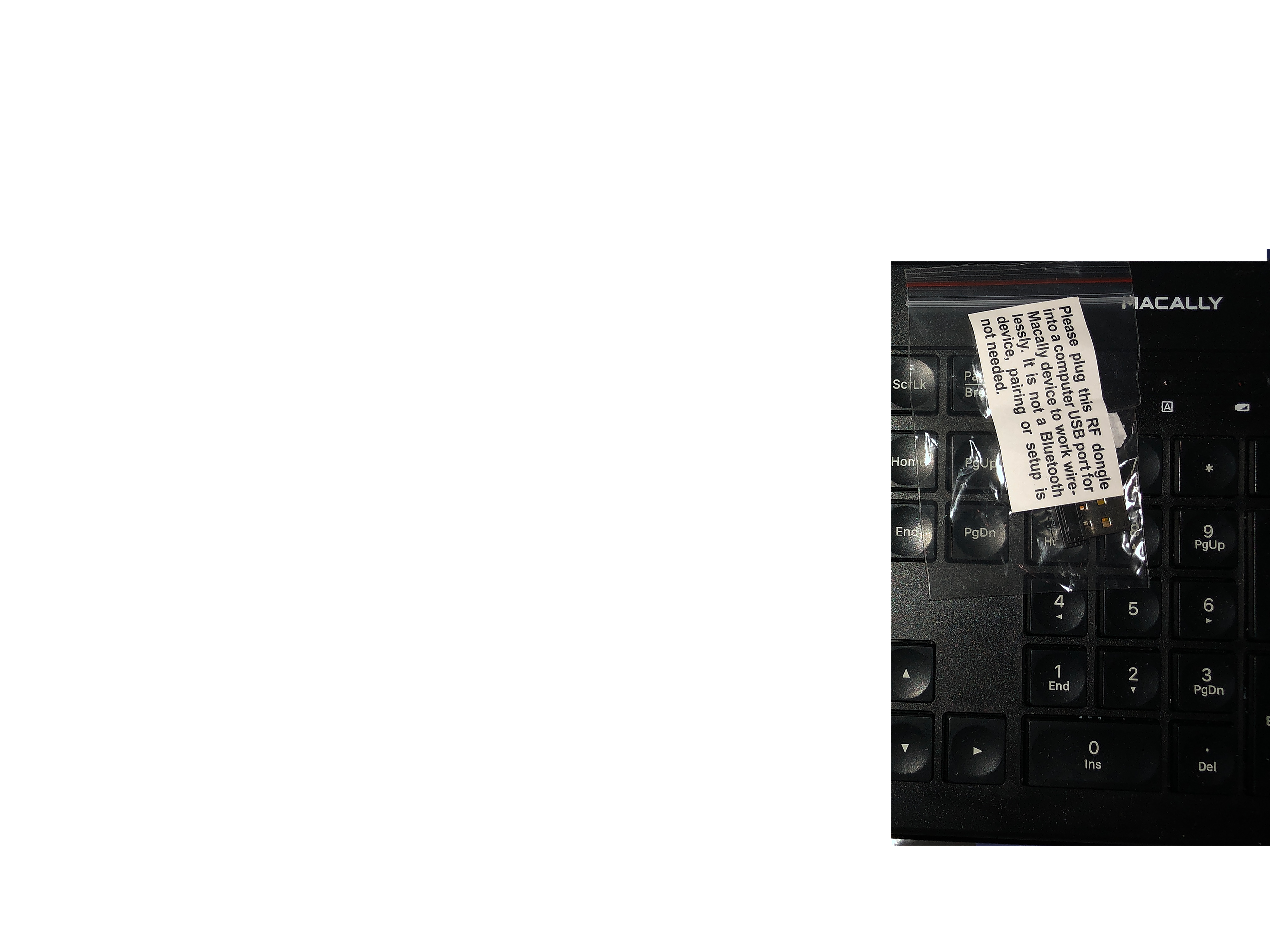
Q: Where is the dongle located?
A: It should be in a Ziplock bag taped to the keyboard.
The keyboard stopped working
Method 1: Swap the AAA battery.
Method 2: Re-sync the keyboard with the dongle/receiver (Directions Below)
- If you have the dongle in your computer, unplug it first.
- Plug the RF dongle into a computer USB port. The dongle will start to search for a new device, (normally it will cease searching after 15 seconds).
- Promptly bring the keyboard a few inches nearby the RF dongle, install the battery into the keyboard battery compartment.
- When you see the sync/battery indicator is flashing on the keyboard, immediately press key ‘ESC’ with the left hand (hold it and not release it) and then keep typing the key ‘K’ for 3-5 seconds, and then the keyboard should sync with the dongle automatically. Test the keyboard to see if it works or not.
- Repeat steps 1 through 4 if it does not work.
The mouse has stopped working
Method 1: Swap the AAA battery.
Method 2: Re-sync the mouse (Directions below)
- If you have the dongle in your computer, unplug it first.
- Plug the RF dongle into a computer USB port. The dongle will start to search for a new device, (normally it will cease searching after 15 seconds).
- Promptly bring the mouse a few inches nearby the RF dongle, install the battery into the mouse battery compartment(or switch to turn on the mouse).
- Then immediately press down the scroll wheel and right button together for 3-5 seconds, the mouse should sync with the RF dongle automatically. Test the mouse to see if it works or not.
- Repeat Steps 1 through 4 if it does not work.
RFDDMOUSE'S BUTTON
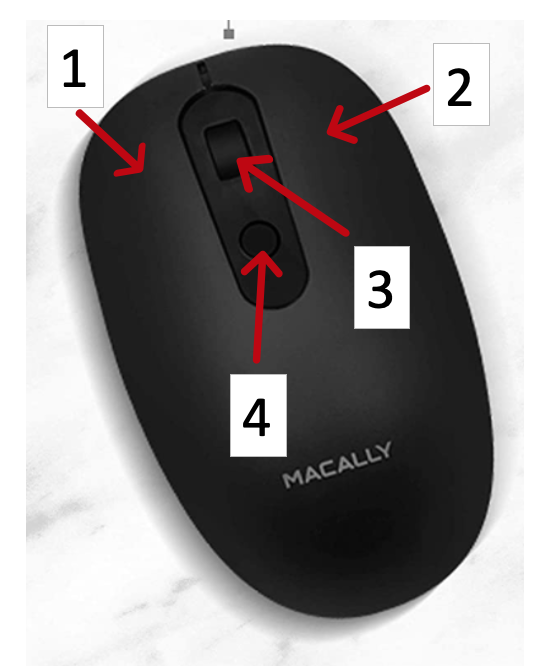
- Button 1: Left Click Button
- Button 2: Right Click Button
- Button 3: Scroll Wheel (Also Button can click down)
- Button 4: DPI [Dots Per Inch] Button (800, 1200, 1600)