Quick Q & A:
Q: How long does it take for the keyboard to fully charge?
A: Depending on how it is charged, it can take approximately 2-3 hours to fully charge.
Q: How do I know when the battery is low?
A: The keyboard will emit a flashing red LED light.
Q: How do I know when the keyboard is fully charged?
A: The red LED light will turn off.
Q: How do I adjust the backlight?
A: F5 will dim and turn off the backlight, F6 will turn on and brighten the backlight.
Q: How long will my battery last after a full charge?
A: Depending on backlight usage and general usage of the keyboard, this can vary from 2 weeks to 2 months (we know, that's a big difference, but backlight usage does drain the battery significantly faster)
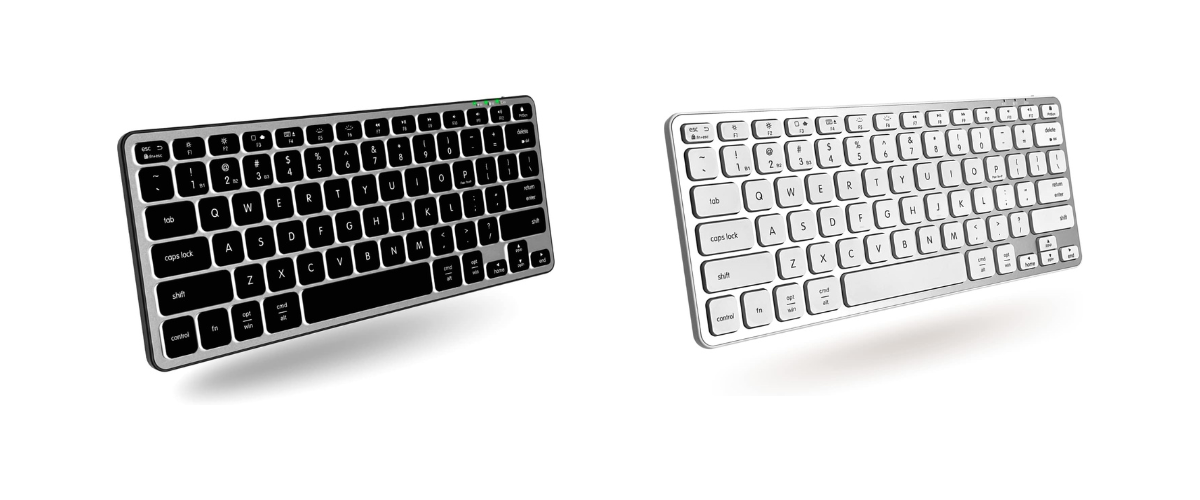
Setting up your keyboard (please note, this keyboard has recently been updated and we now have a V1 and V2. See the pictures below to identify which version you have.
V1 layout
V2 layout
V1 pair instructions:
- Go to Settings > Bluetooth (leave this screen open)
- Turn keyboard on (you should see 3 blue LED lights come and then turn off)
- IF the keyboard is in pair mode, you should be a blinking blue LED
- IF you do not see a blinking blue LED, you will need to initiate pair mode manually.
- Press FN + 1 at the same time, then let go. Then press Fn + P at the same time, then let go.
- You should get a blinking blue LED, and soon after 'BTBLMINIZKEY' should appear under nearby devices. Press Connect.
V2 pair instructions:
- Go to Settings > Bluetooth (leave this screen open)
- Turn keyboard on (you should see 3 blue LED lights come and then turn off)
- IF the keyboard is in pair mode, you should be a blinking blue LED
- IF you do not see a blinking blue LED, you will need to initiate pair mode manually.
- Press Fn + 1 at the same time, then let go. Press Fn + 1 at the same time and hold down simultaneously until you see a blinking LED in the upper right corner, then let go. 'BTBLMINIZKEY' should appear under nearby devices. Press Connect.
For Apple users only - Keyboard set-up assistant
Once you have successfully connected your keyboard to your Mac, you may get a pop-up that states you need to identify your keyboard (Keyboard Set up Assistant). Here are the steps:
- Click on continue
- Press and release the 'Z' key
- Press and release the '/?' key
- Choose 'ANSI' as your region
- Click 'Done'
Note: There are two instances when this pop up may not come up - The first being the connection was unsuccessful. You can check if this is the case by doing a quick test type in any application you'd like (i.e. Google, Safari, Notes), if you are not able to type, you may want to go through the sync instructions again. The second reason the pop up may not appear consistently is because it only triggers when a new, unknown USB or Bluetooth keyboard is detected, or if the system fails to recognize an existing one due to connectivity glitches. You can always manually do it by:
Settings > Keyboards > Change keyboard type - (go through process listed above)
How to set up your keyboard with multiple devices
This keyboard has the ability to connect to 3 different devices, whether it be an iPad, tablet, phone or other computer. The following steps should be done after you've initially set up your first or main device.
V1 pair instructions for 2nd device:
- Go to Settings > Bluetooth (leave this screen open)
- Turn keyboard on (you should see 3 blue LED lights come and then turn off)
- IF the keyboard is in pair mode, you should be a blinking blue LED
- IF you do not see a blinking blue LED, you will need to initiate pair mode manually.
- Press FN + 2 at the same time, then let go. Then press Fn + P at the same time, then let go.
- You should get a blinking blue LED, and soon after 'BTBLMINIZKEY' should appear under nearby devices. Press Connect.
V2 pair instructions for 2nd device:
- Go to Settings > Bluetooth (leave this screen open)
- Turn keyboard on (you should see 3 blue LED lights come and then turn off)
- IF the keyboard is in pair mode, you should be a blinking blue LED
- IF you do not see a blinking blue LED, you will need to initiate pair mode manually.
- Press Fn + 2 at the same time, then let go. Press Fn + 2 at the same time and hold down simultaneously until you see a blinking LED in the upper right corner, then let go. 'BTBLMINIZKEY' should appear under nearby devices. Press Connect.
*To pair to a third device, follow the same steps, but replace the bold 2 to a 3.
To change between channels, press Fn and the channel number you need simultaneously, then let go (do not hold it down - this applies to both versions)
My keyboard will no longer connect or work with my computer
- Make sure the keyboard is turned on.
- Make sure your keyboard has been charged.
- Press Fn + 1 at the same time, let go. If you get a bold blue LED, do a test type. If you do not get a bold LED, your keyboard may have lost connection and needs to be re-paired. (see steps above)
*Please note: Plugging the keyboard into your computer solely charges the device, it does not convert it into a wired device.
My keyboard is adding/missing keystrokes or just isn't responding normally
This could be an issue with the channel you're on. If you have the keyboard connected to only one device, try changing channels (see above under 'How to set up your keyboard with multiple devices' and try channel 2 or 3)
*Please make sure to remove/forget the device before you try a new channel.
I can't set up my new wireless keyboard with my new Mac
Unfortunately, Apple does not allow you to set up a 3rd party keyboard with your new Mac. You would need a wired device to set up your new Mac before you are able to set up your wireless device.